
LincSpider Chrome Extension: Install and First Task
By LincSpider Team · 2026-07-17 · 9 min
I searched link building chrome extension last year when copy-paste outreach stopped scaling. Most results were DR checkers, broken-link highlighters, or directory autofill tools — useful, but none walked me through install → first backlink task in the browser where I already work.
This guide is the missing piece for LincSpider: add it from the Chrome Web Store, try guest preview, sign in for welcome credits, and run one real discovery task before you commit to a bigger campaign. If you want the strategic backdrop first, read how to build backlinks with blog comments. If you already know Chrome is your workflow hub, you'll be productive in under fifteen minutes.
Who This Install Guide Is For
You're a fit if you:
- Run link building yourself (indie founder, growth hire, freelance SEO) and live in Chrome tabs all day.
- Want to find pages, draft contextual comments, and prefill forms — not auto-post or blast emails.
- Prefer trying a workflow before creating another SaaS login.
You're not a fit if you only need backlink monitoring on pages you already visit. Tools like Collaborator Link Assistant or Ahrefs Toolbar do that well. LincSpider is built for prospecting and execution: Google discovery, comment drafts, form prefill, and outreach email suggestions when there's no comment box (r/bigseo on SEO extensions).
What You Get Right After Install
Once the extension is pinned, you get three things immediately:
- Guest preview — up to 3 comment or email drafts without signing in. Preview only; nothing gets posted or sent.
- Full task UI — discovery wizard, history (last 10 tasks), pause/resume checkpoints.
- Optional Google sign-in — 300 welcome credits once, synced to your account on lincspider.kwverdit.com.
Credits are pay-per-AI-step, not per-page caps. Analysis steps typically cost 10 credits; comment or email draft steps cost 50. When balance runs low, the task pauses — you add credits on /en/pricing and resume from the checkpoint.
And the line we repeat because Reddit keeps asking (r/SEO): LincSpider does not auto-post comments or auto-send mail. It drafts and prefills. You click submit.
Install LincSpider from the Chrome Web Store
Head to the official download page and click Add to Chrome. That button opens the Chrome Web Store listing with the current version number — no zip files, no mystery CRX links.
Then:
- Confirm the install prompt. Chrome asks for permissions (
storage,tabs,scripting, and host access while you run tasks). We only read page excerpts during tasks or guest previews — not passive browsing surveillance. Details are in our Privacy policy linked from the site footer. - Wait for the toolbar icon. A purple LincSpider icon appears in the extensions area.
- Pin it. Click the puzzle piece → pin LincSpider. You'll open this popup dozens of times per week; burying it costs clicks (download page step 3).
- Open the popup once. You should see the task wizard — no sign-in required yet.
Developers can skip the store and load extension/ from the repo via chrome://extensions (Developer mode). Everyone else should use the Chrome Web Store path so updates stay automatic.
Permissions in plain language: storage keeps your task history and settings on-device. tabs and scripting let the extension open Google results and target pages only while a task runs. We do not sell browsing data, and we do not read pages you never asked LincSpider to process. If that still feels broad, run your first task on a test blog, watch the network tab, and uninstall if it is not for you — no account required for guest preview.
Watch the 60-second demo on YouTube if you want motion before you click install.
Try Guest Preview Before You Sign In
I always run guest preview on a real page before I connect Google — same instinct as trying a CLI flag before wiring it into cron.
Here's how:
- Open a blog post in your niche (pick something with an open comment section if you can).
- Click the LincSpider icon → start a guest preview flow.
- The extension sends page URL, title, and visible text to our API for draft generation. You see suggested comment copy in the popup.
- Repeat until you've previewed 3 drafts total across the install. The banner shows how many free previews remain.
Guest preview is preview-only. You can read and edit the suggestion, but prefill and full multi-page tasks need sign-in. That matches what outreach folks on Indie Hackers keep saying: automation for timing, human for the message.
Sign In with Google (300 Welcome Credits)
When you're ready for a full task:
- Open the popup → Sign in with Google.
- Complete the OAuth window (use a normal Chrome profile; Incognito blocks extensions unless you explicitly allow them).
- Your account receives 300 welcome credits once. The popup footer shows balance; signed-in tasks sync metadata for billing recovery.
If login fails, allow pop-ups for lincspider.kwverdit.com and retry. Still stuck? Email support@kwverdit.com with your Chrome version — same guidance as our Support page.
300 credits is enough for several small discovery runs (roughly: multiple 10-credit analysis steps plus a handful of 50-credit drafts). It's a real trial, not a teaser that expires in an hour.
Run Your First Link Building Task
This is the workflow I wish someone had shown me on day one — the same rhythm we document in Link Building in Chrome: A Practical Extension Workflow, compressed for onboarding.
Step 1 — Choose a seed URL
Open LincSpider → start a new task. Paste the page you want to promote (your homepage, a pillar article, or a landing page). You can also paste competitor backlink URLs later; for the first run, one clear promotion URL is enough.
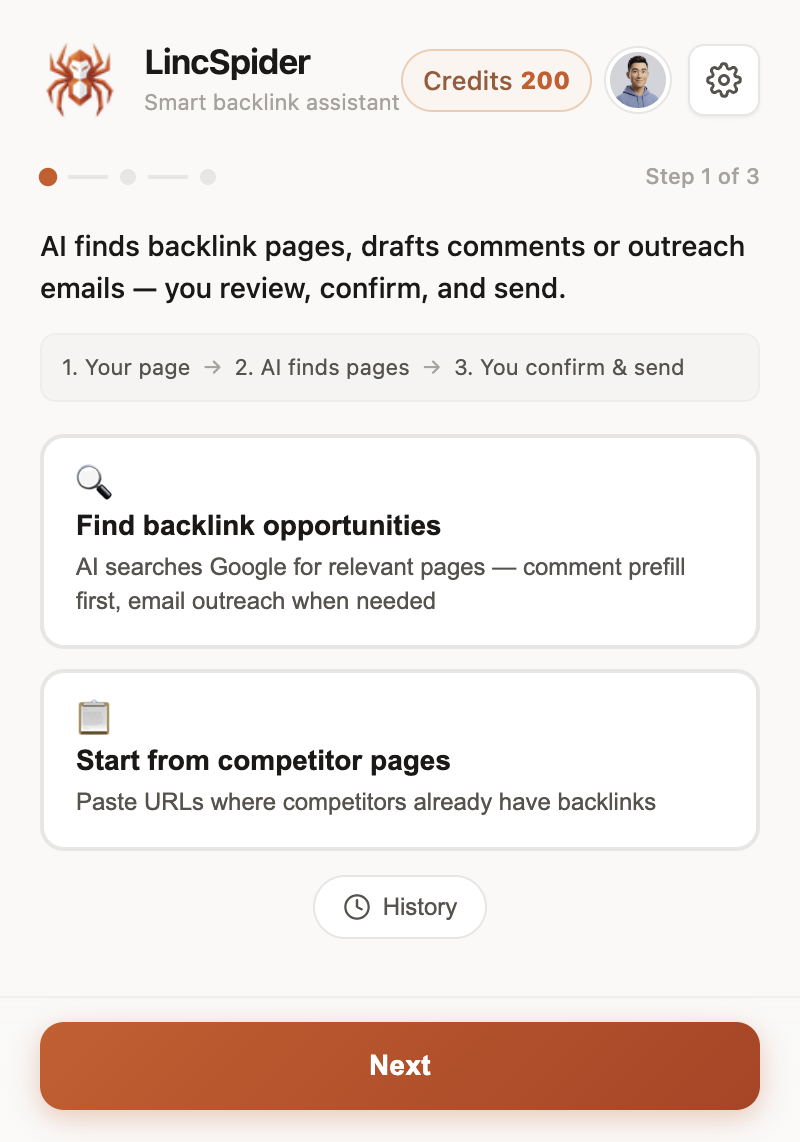
You don't need a perfect keyword list. LincSpider expands terms from your seed and searches Google for comment-ready or outreach-ready pages.
Step 2 — Let auto-discover run
Hit Next. The extension queues Google searches, collects candidate URLs, and drafts a comment or outreach email per page as it progresses. Tasks can take a few minutes — that's normal. Manual prospecting used to eat my afternoons (r/SEO on outreach setup).
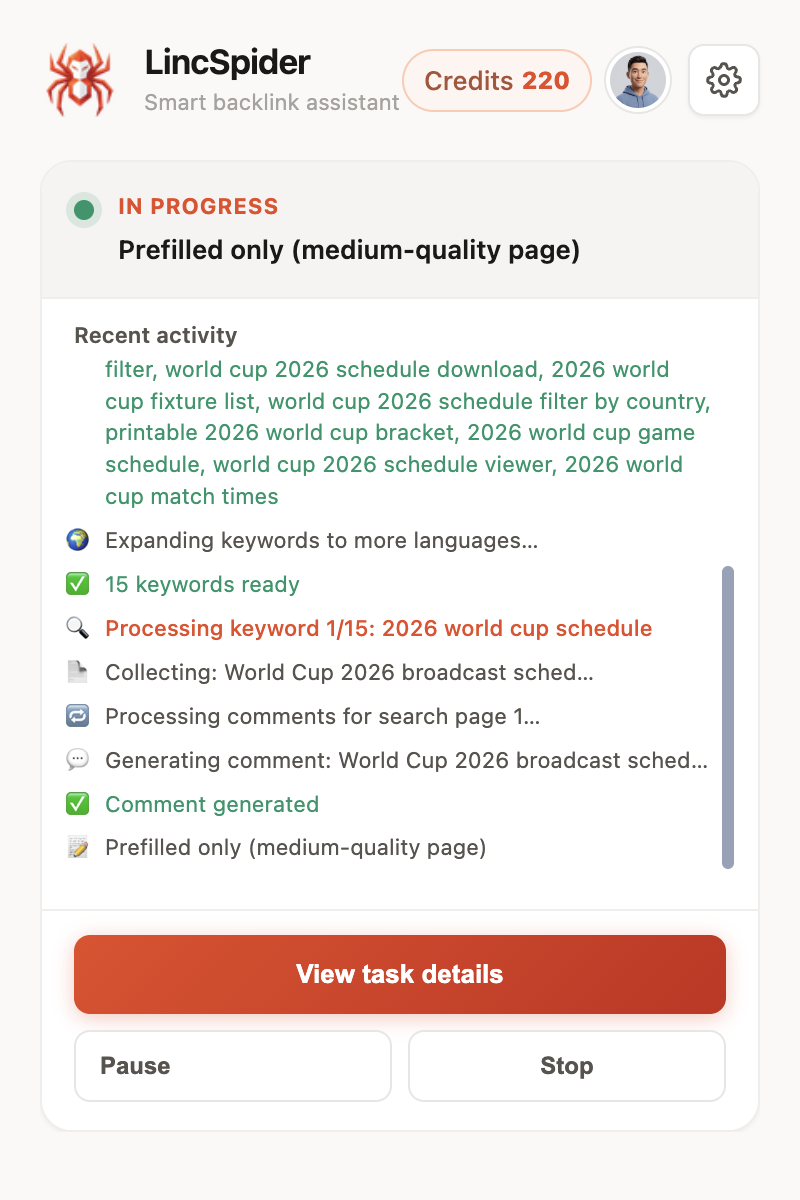
Step 3 — Review before you invest time
When results land, scan domain, title, and whether comments look open. Skip spammy comment sections early — same filter as our blog comment backlink guide. I usually sort by relevance first, then open only two or three tabs. If the comment thread is ninety percent "nice post" bots, I mark it skipped and move on. That five-minute triage saves more time than polishing a draft for a dead page.
Open only the rows worth a human comment.
Step 4 — Approve a draft and prefill
Pick one promising page. Read the AI draft, edit anything that sounds generic, then open the target tab. If a comment form exists, LincSpider prefills fields. You review and click the site's submit button.
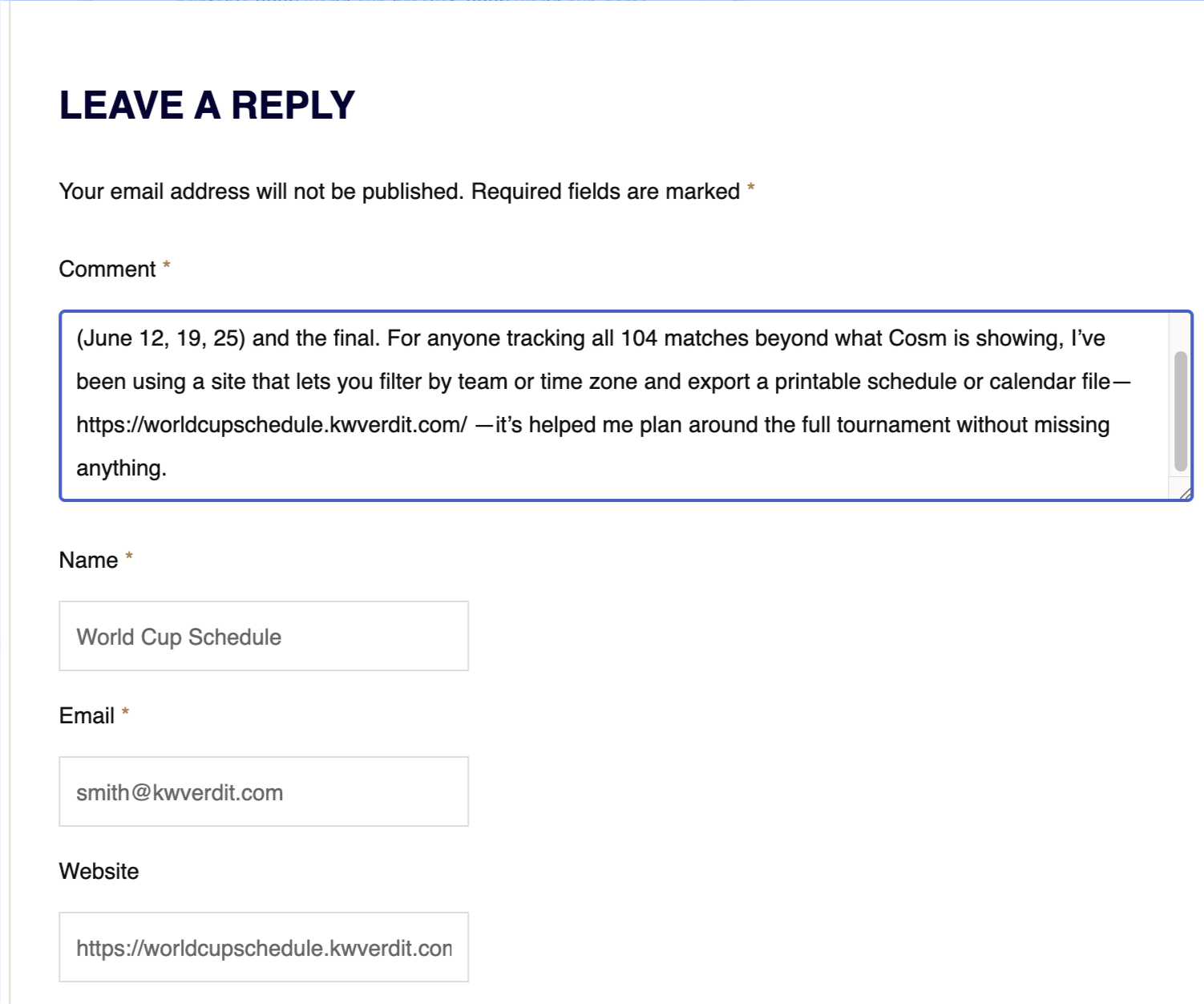
No comment box? The task branch surfaces contact hints and drafts outreach email subject/body — still manual send. That's the two-path workflow HN builders describe when they import competitor lists instead of spamming directories (BacklinkHelper thread).
Step 5 — Check History
Your last 10 tasks (including guest previews) sit in History. Paused tasks keep checkpoints locally. Nothing leaves your machine except the API calls you explicitly trigger.
Credits, Pause, and When to Buy More
Typical first-task spend:
| Step | Credits (approx.) |
|---|---|
| Page analysis / search expansion | ~10 per step |
| Comment or email draft | ~50 per page |
Run out mid-task? The extension pauses. Add a credit pack or plan on /en/pricing, then Resume from History. No hidden page caps — credits are the only meter.
I treat 300 welcome credits as "learn the UI + finish 2–3 small campaigns." After that, I top up based on weekly comment volume, not vanity metrics.
FAQ
How do I install a link building Chrome extension safely?
Use the official Chrome Web Store listing linked from our site. Pin the icon, read permissions, and avoid sideloaded CRX files from random SEO forums.
Can I try LincSpider before signing in?
Yes. Guest preview gives up to 3 drafts without Google sign-in. Preview-only — no prefill on full tasks until you're signed in.
How many credits do I get on Google sign-in?
300 welcome credits, once per account. Analysis steps are ~10 credits; drafts are ~50.
Does LincSpider auto-post comments or send emails?
No. It suggests copy and can prefill forms you open. You edit, submit, or send manually — the same human-in-the-loop rule Hacker News demands when SEO tools get lumped in with spam.
What should my first task look like?
One promotion URL → auto-discover → review 5–10 results → prefill one comment you actually believe in. Quality over volume matches every forum thread on comment outreach.
Why did my task pause after a few pages?
Usually low credits or a manual pause. Sign in (if you haven't), check balance in the popup, add credits on /en/pricing, resume from History.
How is LincSpider different from Ahrefs or monitoring extensions?
Ahrefs Toolbar and similar tools excel at on-page metrics on URLs you already opened. LincSpider excels at finding new pages on Google, drafting contextual comments, prefilling forms, and drafting outreach emails — execution, not just measurement.
Where do I learn the full Chrome link building workflow?
Start here for install, then read Link Building in Chrome: A Practical Extension Workflow for the complete discover → draft → prefill → email branch. Tactical depth lives in How to Build Backlinks with Blog Comments.
Wrapping up
Link building chrome extension searches shouldn't end at another DR badge. Install LincSpider from /en/download, burn three guest previews on real pages, sign in for 300 credits, and finish one discovery task you would have been proud to do manually — just faster.
When you're ready for volume, /en/pricing has credit packs and plans. The extension stays the same: you approve every comment and every email.
Sources: Reddit r/SEO, r/bigseo, r/chrome_extensions; Hacker News; Indie Hackers; Collaborator / Skrapp industry lists; LincSpider product docs.